

Tracking Method
Tracking Method is set to Browser + Server by default, and this is the recommended way to run TikTok: Upstack loads the TikTok Pixel on your storefront and also sends events server-side, and the two copies are deduplicated. If you don’t want to load the TikTok Pixel in the browser, switch the Tracking Method to Server. See Tracking Method.
Prerequisites
Before you start, you need:- An active Upstack Data account (sign up)
- Admin access to your TikTok Business Center
- A TikTok Pixel configured under Events Manager → Data sources (see How to Create New TikTok Ads Pixel ID →)
- Your TikTok Pixel ID (How to Find your TikTok Ads Pixel ID →)
- A generated Access Token (How to Generate Your TikTok API Access Token →)
Configuration Steps
1
Sign in to Upstack Data
Sign in to Upstack Data at app.upstackdata.com.
2
Add a new TikTok destination
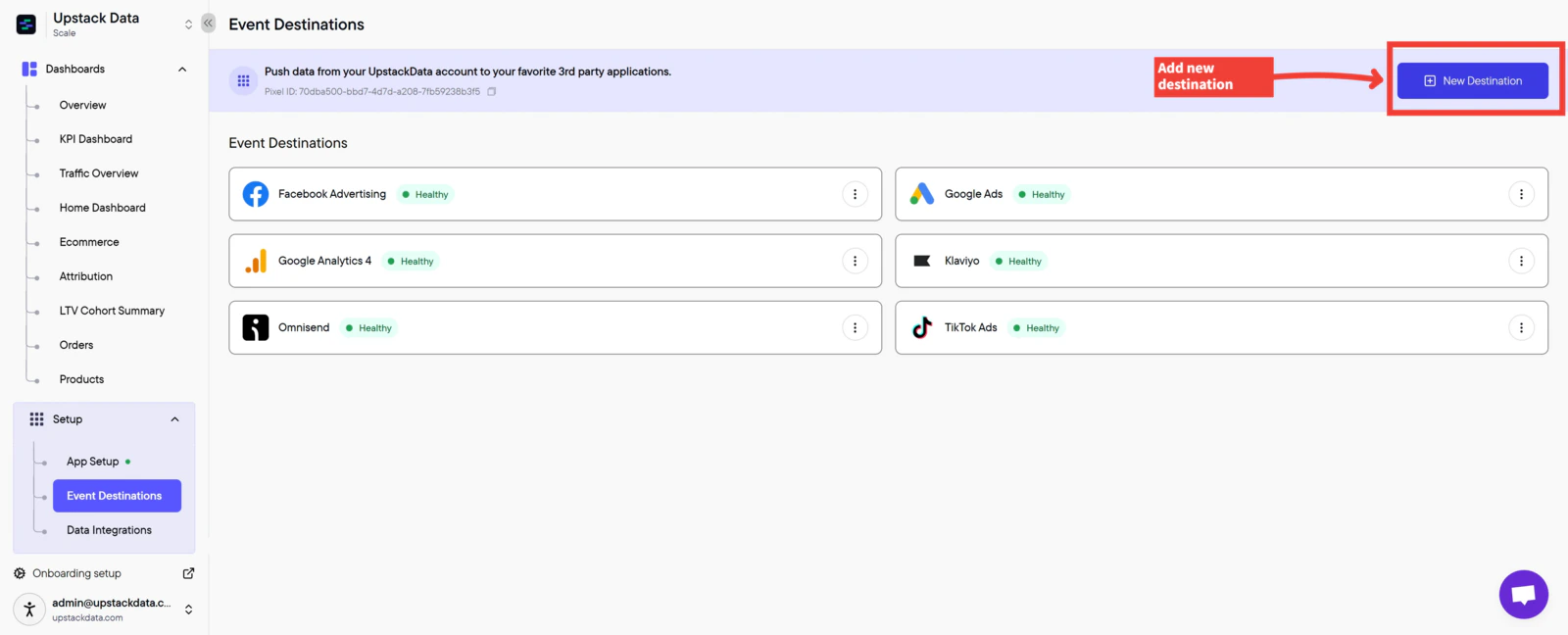
- In the Upstack dashboard, navigate to Events Destination (app.upstackdata.com/pixel/event-destinations)
-
Click ”+ New Destination” in the top-right corner of the page
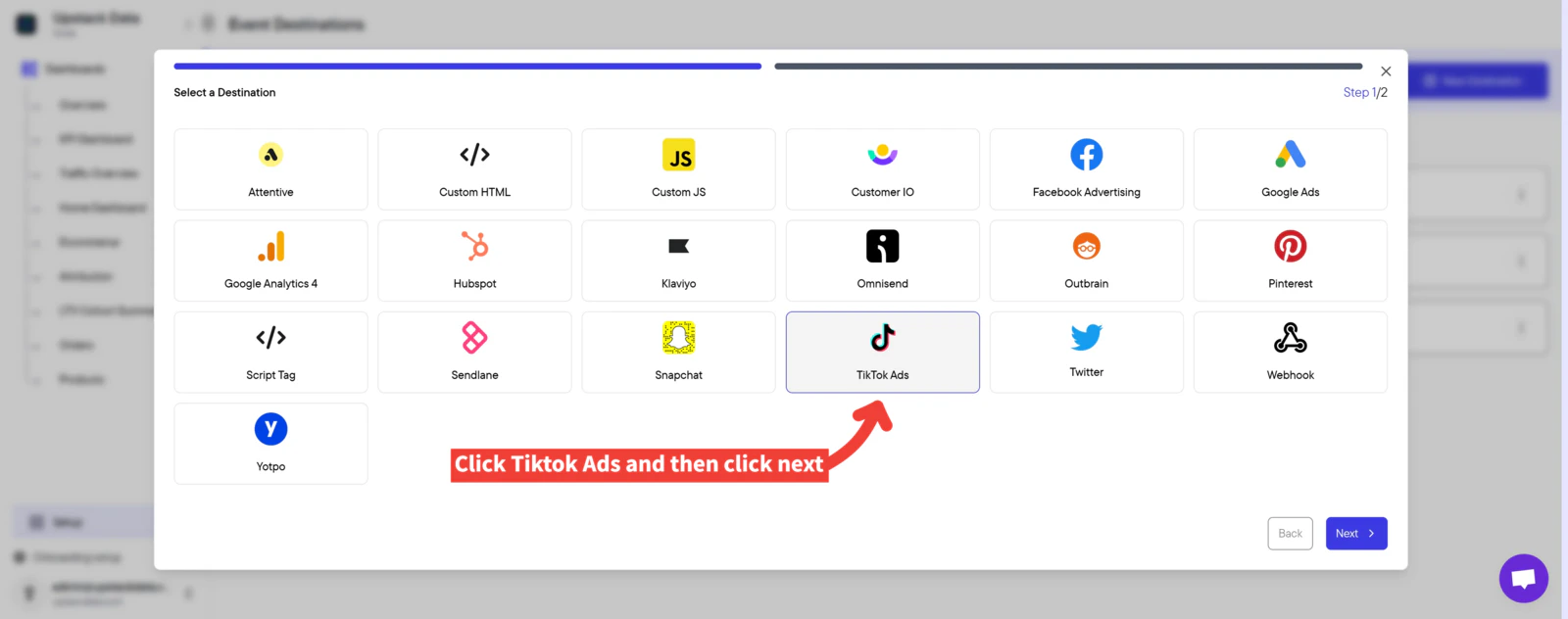
- In the Select a Destination popup, click “TikTok”
-
Click Next
3
Enter your Pixel ID and Access Token
Fill in the form fields:
-
TikTok Pixel ID — 20-character alphanumeric string (e.g.,
C2A3B4C5D6E7F8G9H0I1). Also called the Dataset ID. -
Access Token — long alphanumeric string starting with letters/numbers, generated from TikTok Events Manager
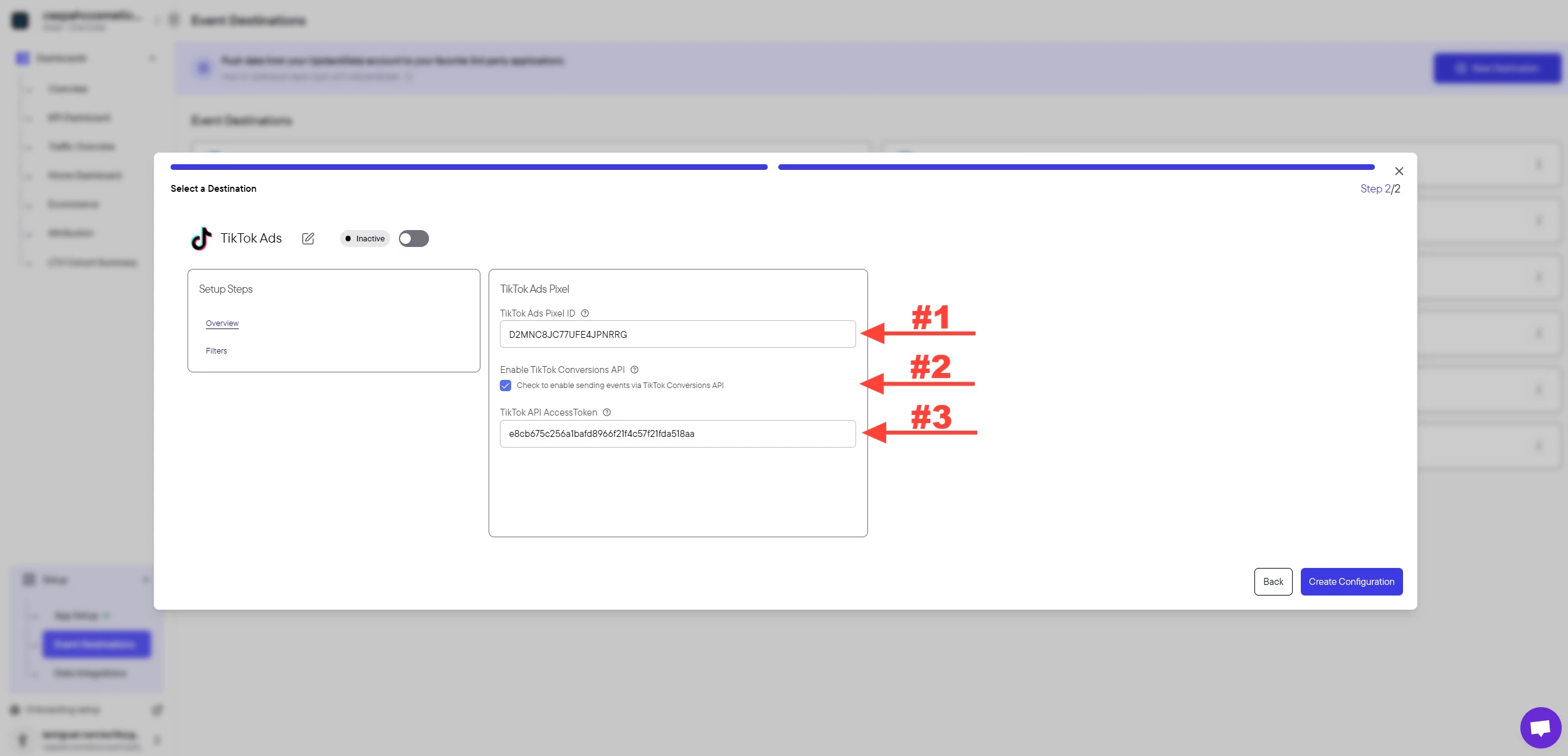
Need help finding these?How to Find your TikTok Ads Pixel ID →How to Generate Your TikTok API Access Token →
4
Create the configuration
Click the Create Configuration button.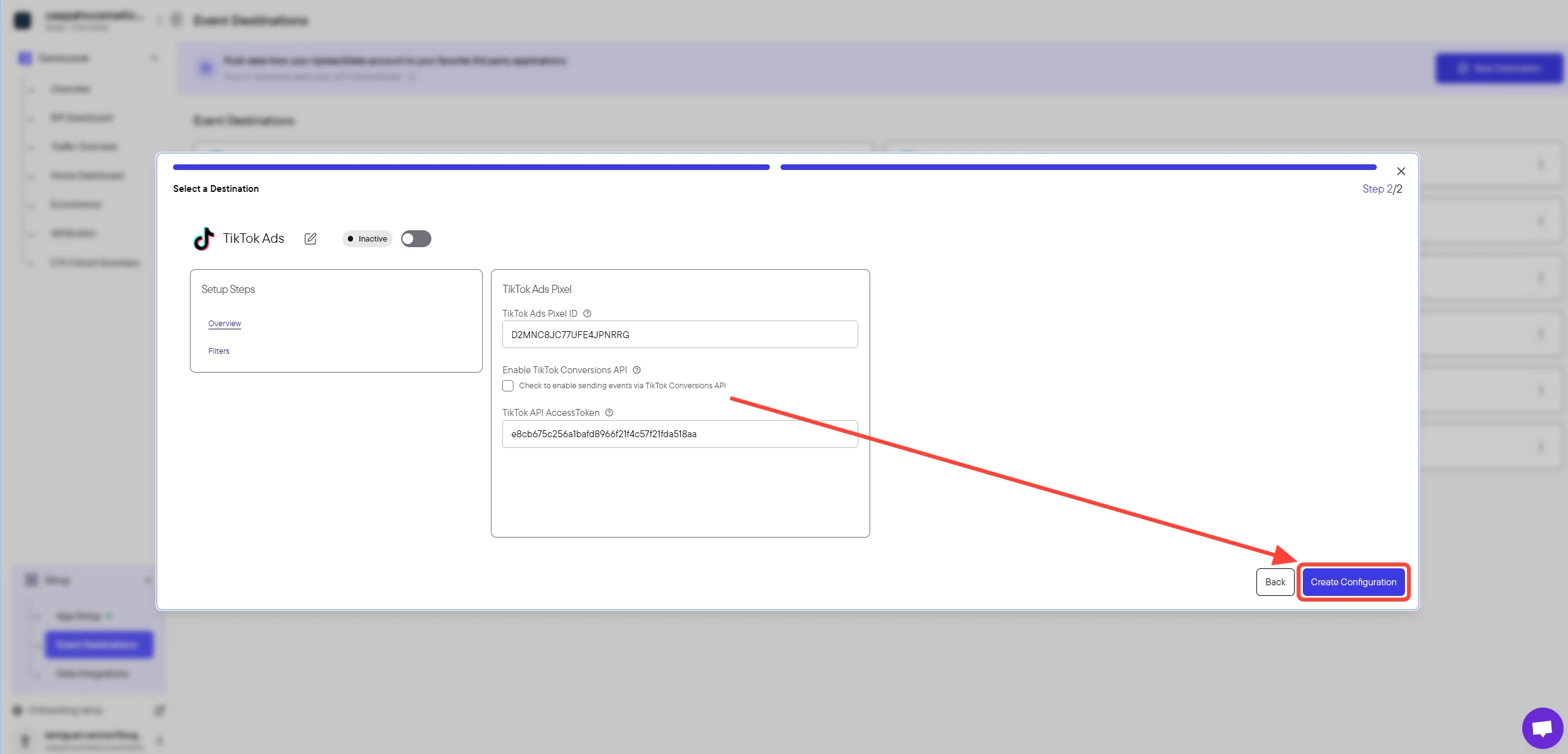
Success! 🎉 You should see a confirmation message and the TikTok destination will appear as “Healthy” in your destinations list.
Verify the Setup
To confirm the destination is working:- In the Upstack dashboard, the TikTok destination should show Healthy status under Events Destination.
- In TikTok Events Manager, open your Pixel and confirm events are arriving via both Browser and Server (CAPI).
- Place a test order on your store and check that the Purchase event appears in TikTok Events Manager within a few minutes.
- The Pixel ID is exactly 20 characters with no spaces.
- The Access Token was copied immediately after generation (TikTok shows it only once) and contains no leading or trailing spaces.