

New to Upstack? If you haven’t already, create your Upstack account before continuing.
Overview
Upstack Data is a first-party data pixel (CAPI) solution that enhances your Facebook (Meta), TikTok Ads, Google Ads, and Klaviyo tracking capabilities, helping you bypass iOS 14+ restrictions and improve your advertising ROAS.Prerequisites
- Active Upstack Data account (sign up) — see plans and pricing
- Active Shopify store (
your-store.myshopify.com) - Shopify Admin access with permission to install apps and edit themes
- Facebook Business Manager account and admin access (for Meta tracking)
- Ad account credentials and access for every platform you want to track
Configuration steps
Part 1: Connect Shopify from the Upstack dashboard
Sign in to app.upstackdata.com, navigate to Data Sources → Shopify, and click Connect Shopify. Upstack redirects you to your Shopify Admin to authorize the install. Help guide to complete this step: How to Install the Upstack Data App in Shopify →Part 2: Enable Theme App Extension
1
Open the theme settings prompt
After signing in to the Upstack Data app, a modal window will prompt you to enable the UpStackified Theme App Extension.Click Enable UpStackified Theme App Extension.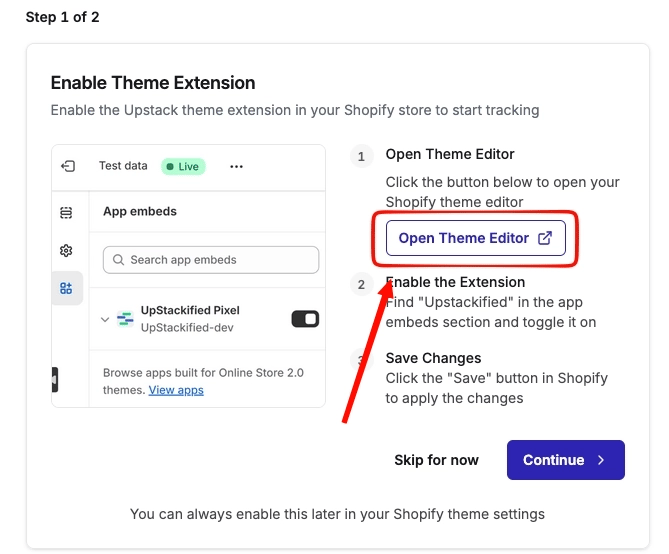
2
Enable the Theme App Extension in Shopify Admin
In Shopify Admin, ensure the UpStackified Theme App Extension is ENABLED.Help guide to complete this step:How to Ensure Upstack Data Theme App Extension is Enabled →
3
Proceed to onboarding
Click Continue to proceed with the onboarding.
Part 3: Add Custom Pixel
1
Open Customer Events in the Upstack Data app
On the Upstack Data app onboarding page, click Customer events and click the Copy Pixel Code button to copy the code to your clipboard.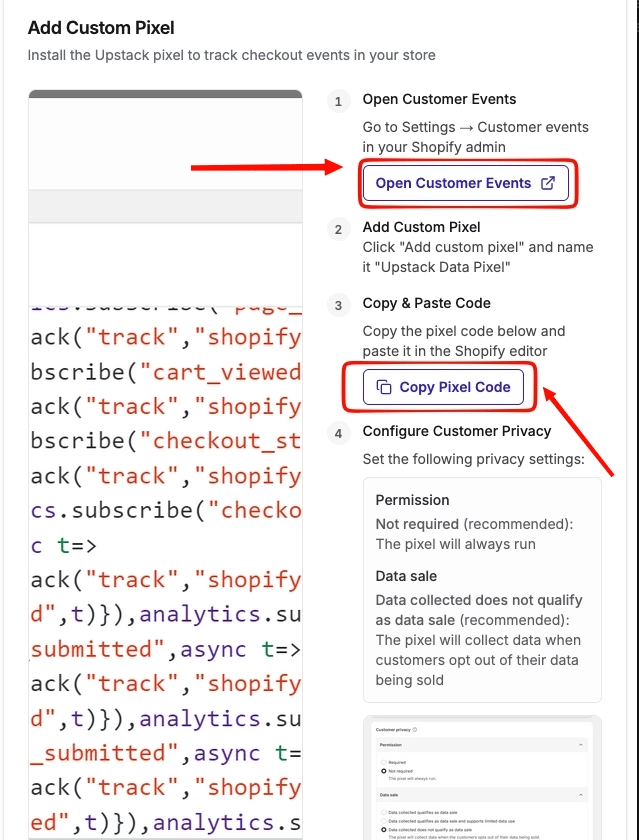
2
Add a Custom Pixel in Shopify Admin
In your Shopify Admin, navigate to Settings → Customer events → Add custom pixel.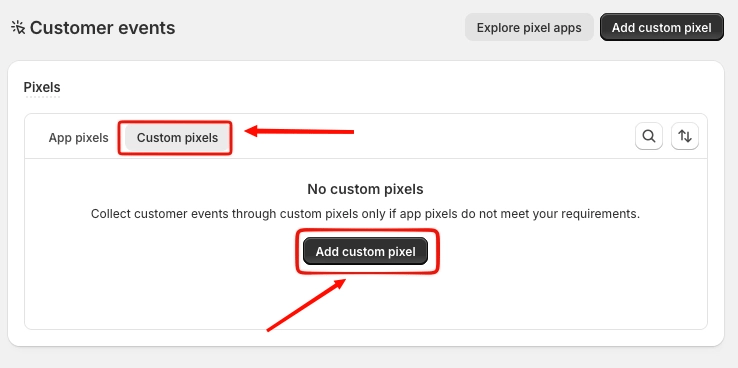
3
Name the Custom Pixel
Set the pixel name to UpstackData → click Add pixel.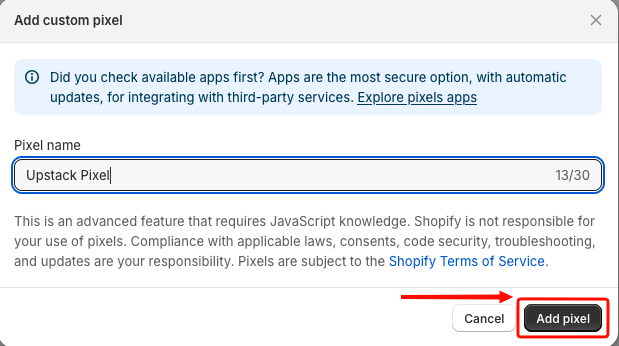
Part 4: Connect Shopify Customer Events Pixel
1
Set consent and privacy settings
Help guide to complete this step:Shopify Custom Pixel - Privacy Consent Settings →
2
Paste the Pixel Code
Paste the Pixel Code → click Save → click Connect.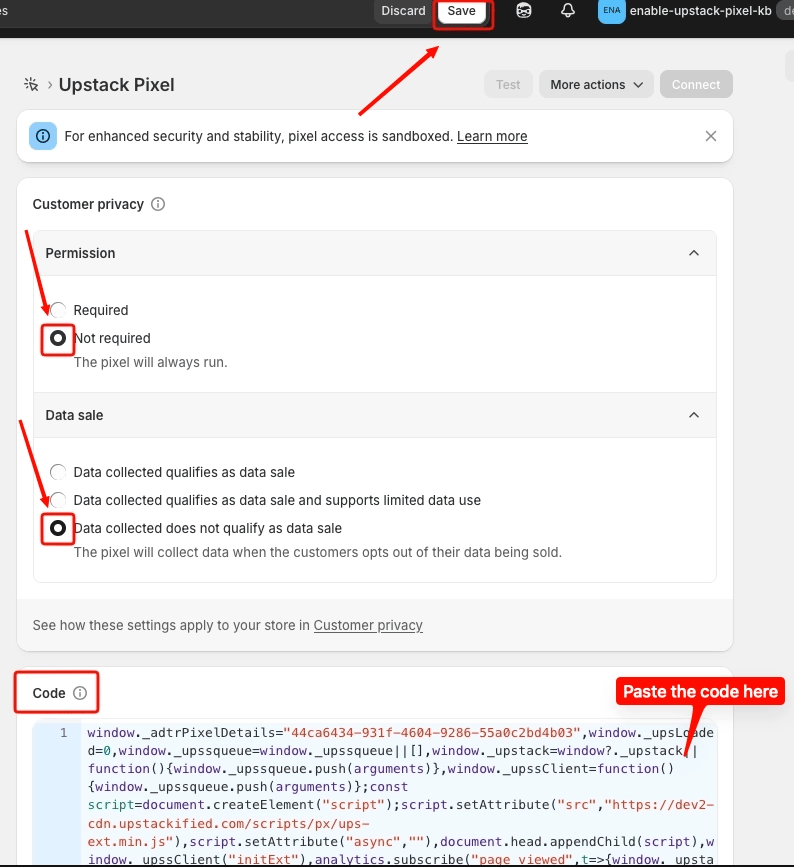
3
Connect the Custom Pixel
In the modal popup, click Connect.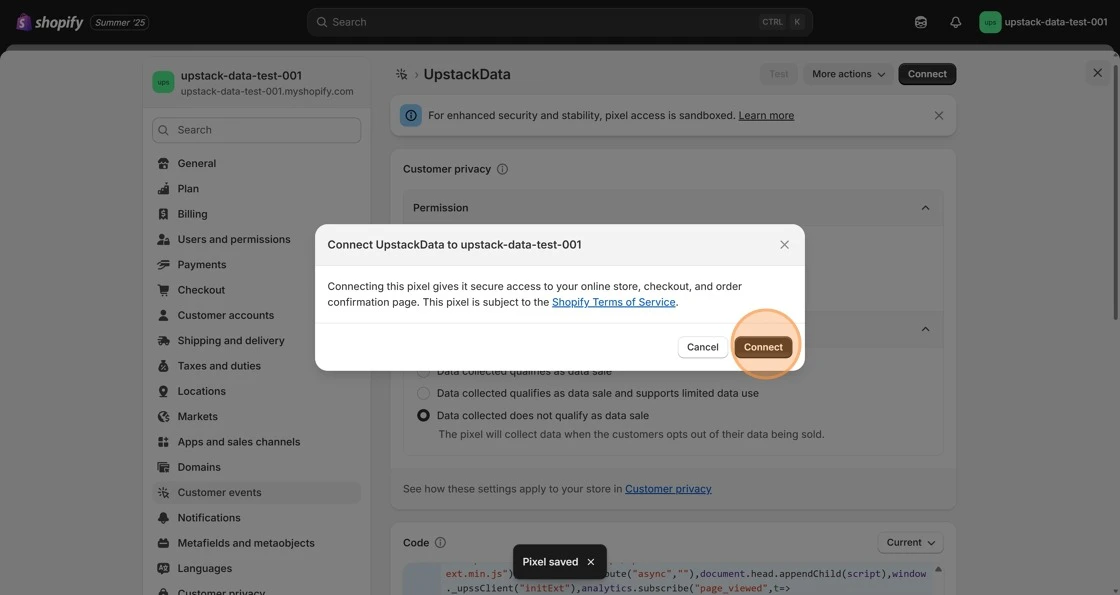
Part 5: Finish setup
In the Upstack Data app, click Continue → then click Finish Setup.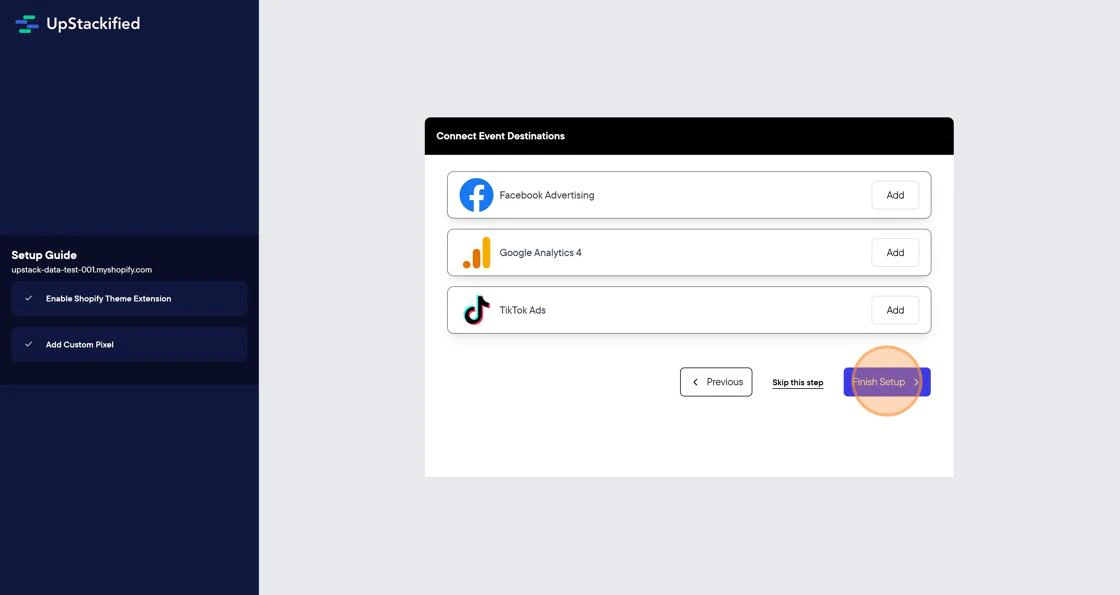
Part 6: Verify the installation
Confirm everything is wired up correctly before you start running ads:- Place a test order on your store (or wait for a real one).
- In the Upstack dashboard, open Events Manager and confirm
PageView,AddToCart,InitiateCheckout, andPurchaseevents are arriving. - In Shopify Admin → Settings → Customer events, confirm the UpstackData Custom Pixel shows status Connected.
- In Shopify Admin → Online Store → Themes → Customize → App embeds, confirm UpStackified Pixel is enabled.
Need help?If you encounter any issues during setup, contact our support team and we’ll help diagnose the problem.
What’s next
Connect a destination
Forward events to Meta CAPI, TikTok, Klaviyo, or other ad platforms.
Explore the CLI
Query your data and manage dashboards from the command line or through AI agents.
View plans and pricing
See available plans and adjust your subscription as your store scales.
Troubleshoot issues
Common fixes if events aren’t appearing after setup.