

What is a Meta Pixel ID?Your Meta Pixel ID (sometimes shown as “Dataset ID” inside Meta Events Manager) is a 15–16 digit number Upstack Data uses to send conversion data to your Meta ad account. Meta Pixel IDs have no prefix — that’s how they differ from Google Ads conversion IDs (which start with
AW-).Prerequisites
Before you start, you need:- Access to a Meta Business Manager account
- A pixel already created in Meta Events Manager (or follow the create-pixel steps below)
Steps to find your Meta Pixel ID
1
Sign in to Meta Events Manager
Sign in to Meta Events Manager at business.facebook.com/events_manager.
2
Find or create your pixel
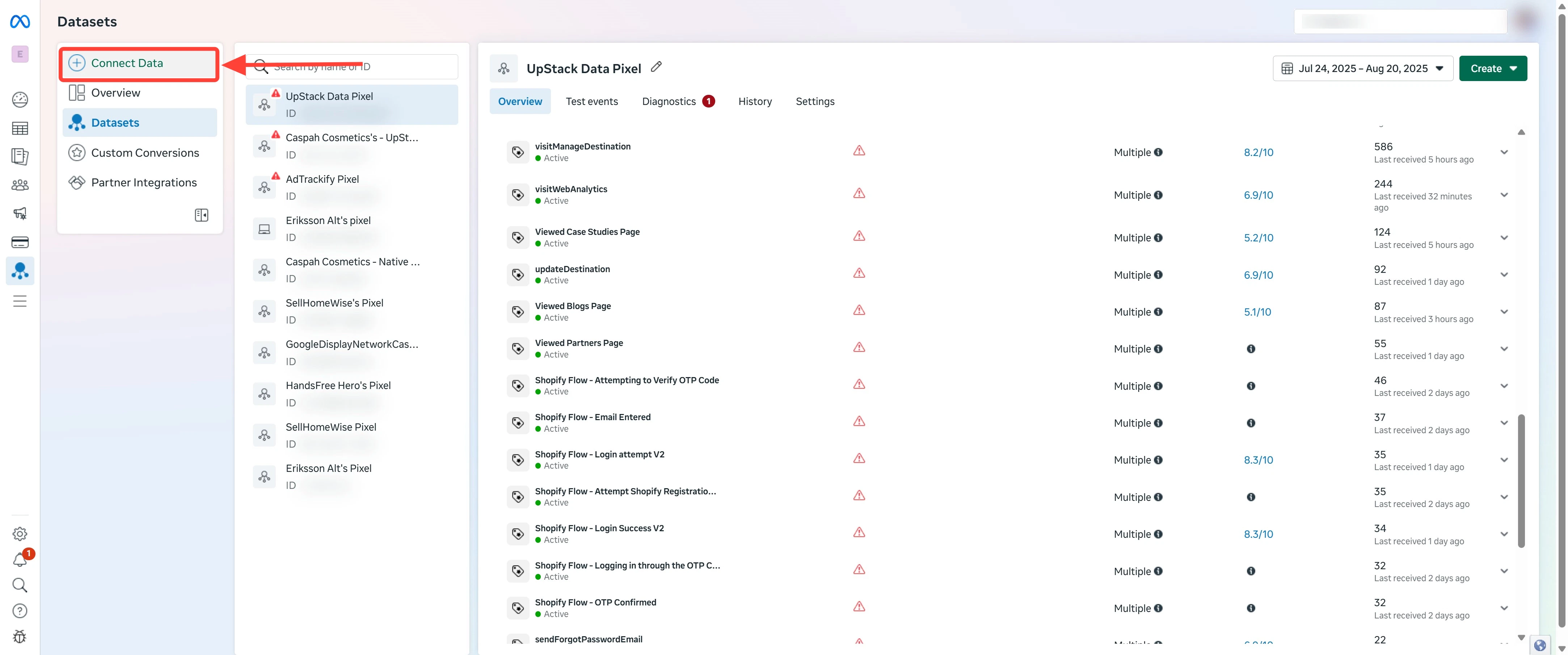
If you already have a pixel, you’ll see it listed in the left-hand Data Sources panel — proceed to the next step.If you need to create one:
- Click the green Connect Data Sources button
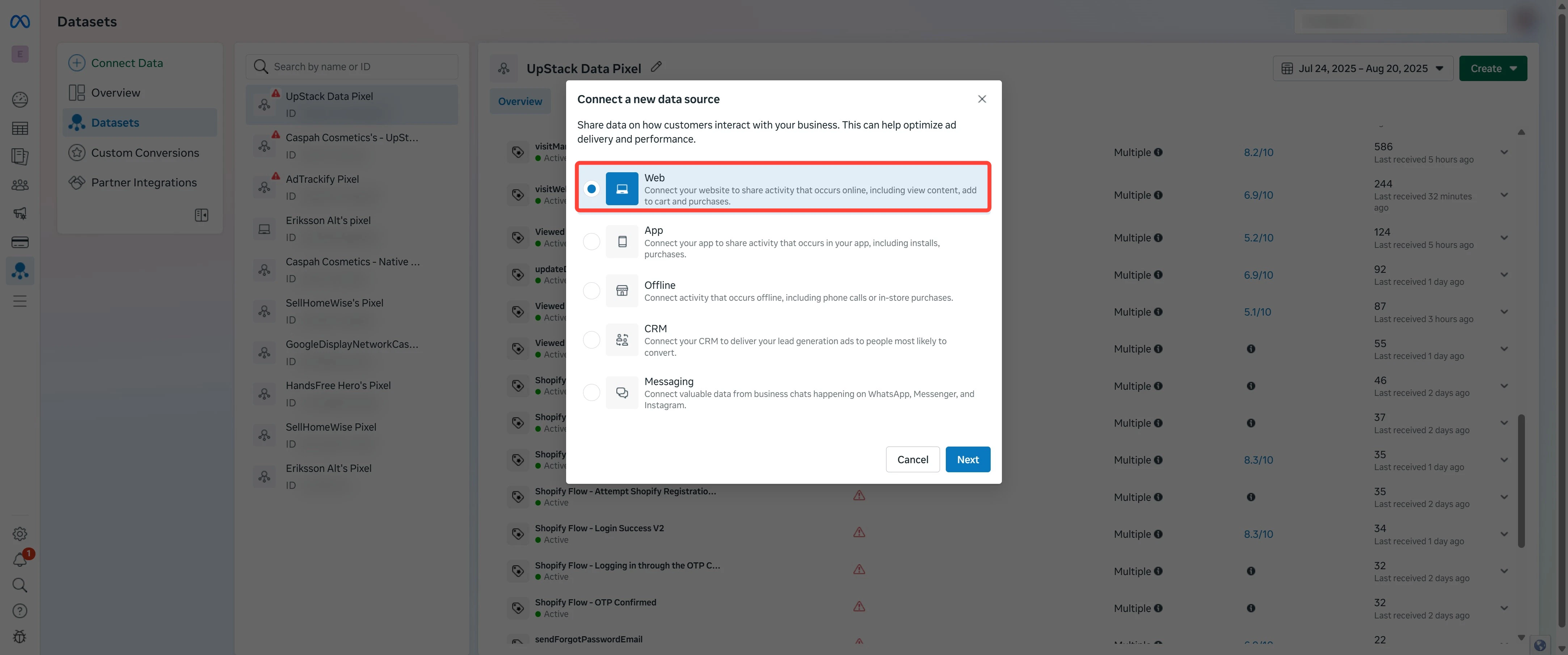
- Select Web
- Click Next or Get Started
-
Follow the instructions to create a new Meta Pixel
3
Open the pixel overview
In the Data Sources list, click the pixel’s name. You’ll land on the pixel’s Overview page.
4
Locate your Pixel ID
On the pixel Overview page, click the Settings tab in the left-hand menu.On the Settings tab, locate Dataset ID at the top of the page. This is your Pixel ID — a 15–16 digit number with no prefix.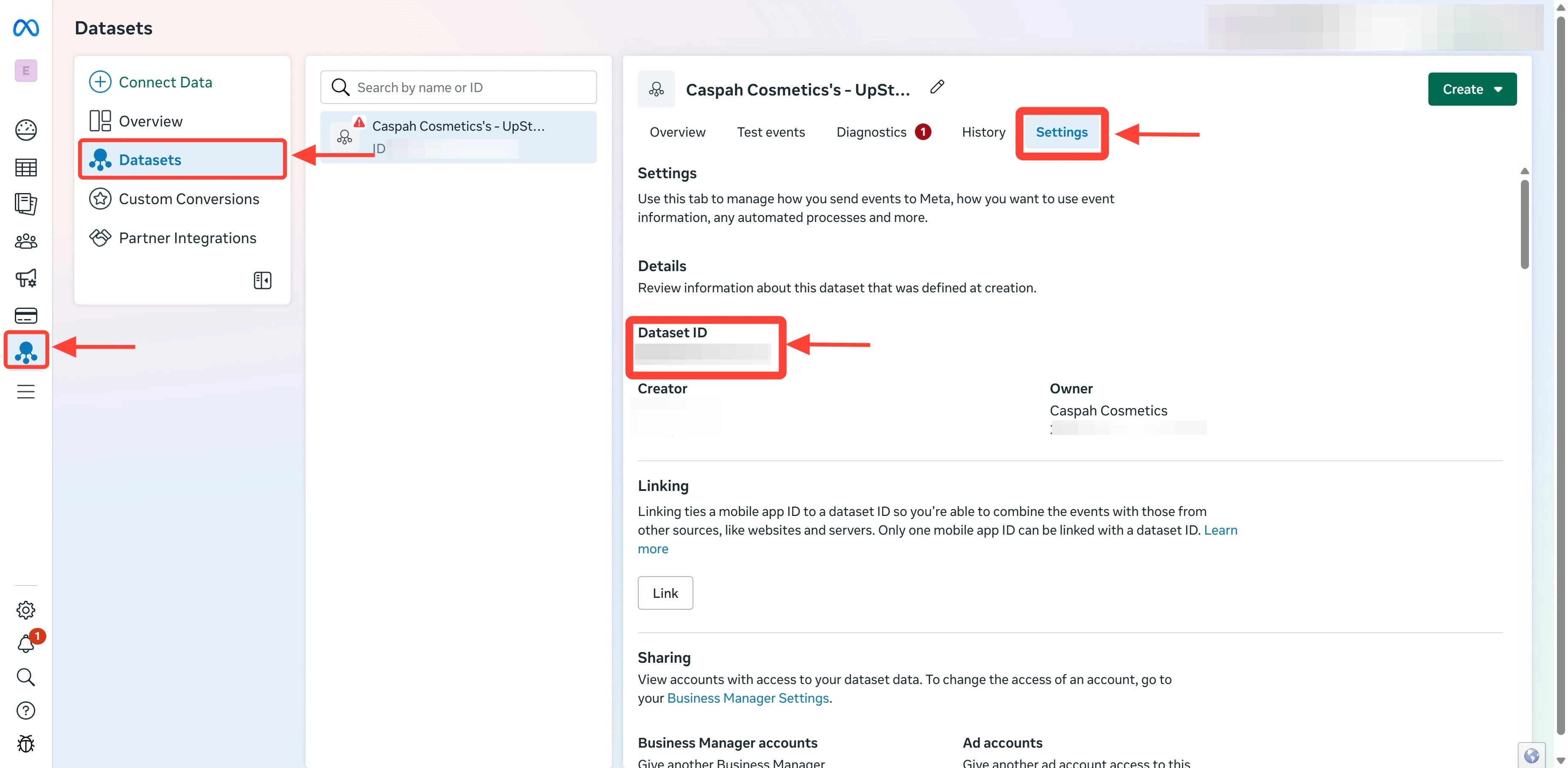
1234567890123455
Copy and paste into Upstack Data
Copy your Pixel ID and paste it into the Pixel ID field in your Upstack Meta destination setup.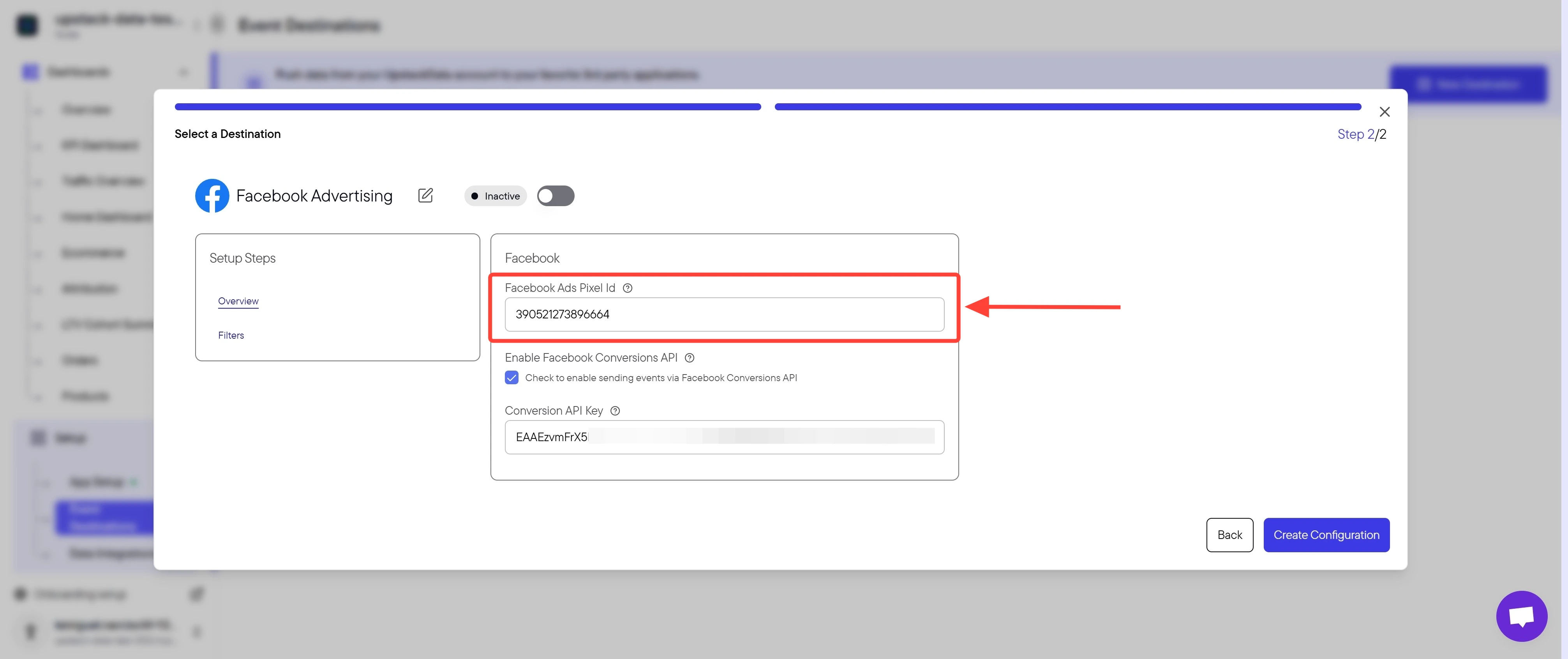
6
Save the configuration
Click Create Configuration to save the destination.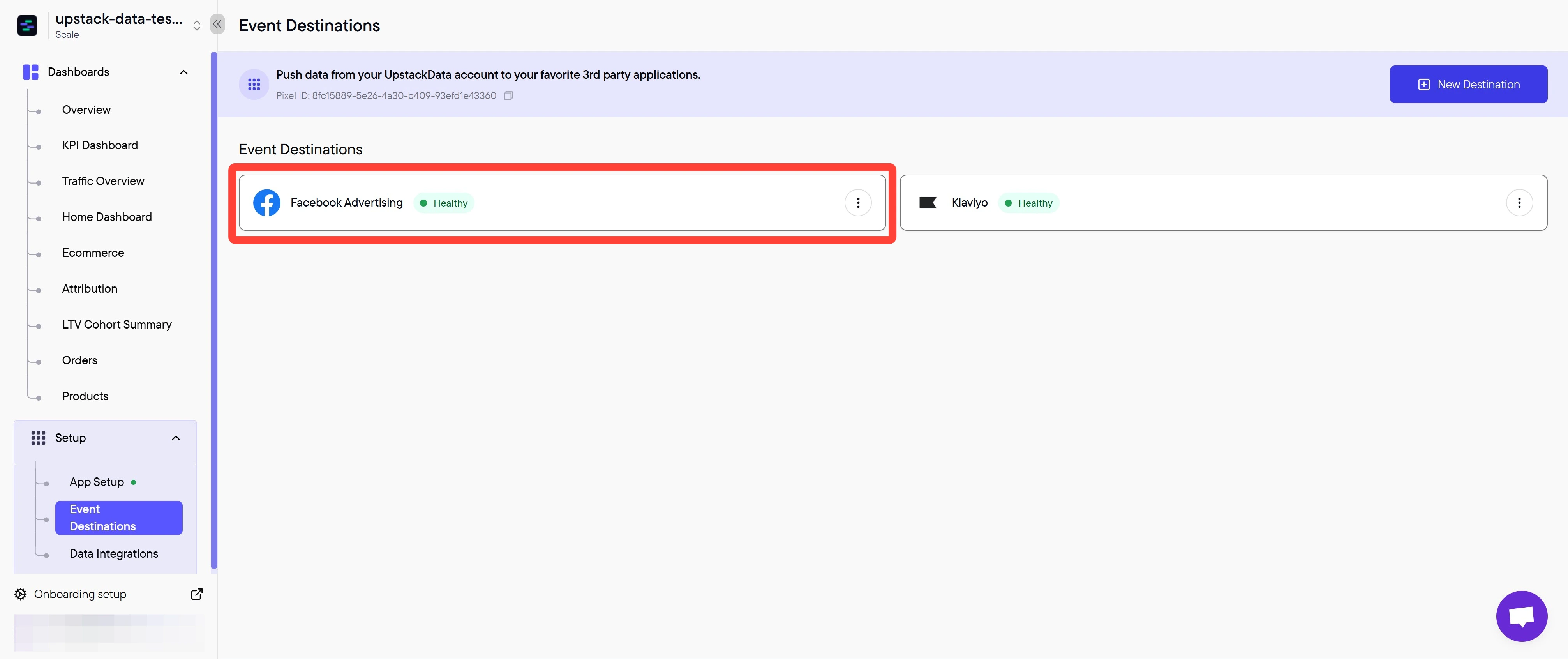
7
Verify the destination is healthy
In the Upstack dashboard, navigate to Event Destinations. Your Meta destination should display Healthy with a green status indicator within 5 minutes.If the status shows Unhealthy, double-check that the Pixel ID matches exactly what you see in Meta Events Manager (no prefix, no whitespace).
Next step: How to generate your CAPI token