> ## Documentation Index
> Fetch the complete documentation index at: https://docs.upstackdata.com/llms.txt
> Use this file to discover all available pages before exploring further.
# How to Connect your Facebook Ads Account in Upstack Data Integrations
> Connect your Facebook Ads account to Upstack Data so spend, impressions, and clicks pull into the dashboard for unified channel-level ROAS and attribution reporting.
* Sign in to Upstack Data at [app.upstackdata.com](https://app.upstackdata.com) and navigate to **Data Integrations**.
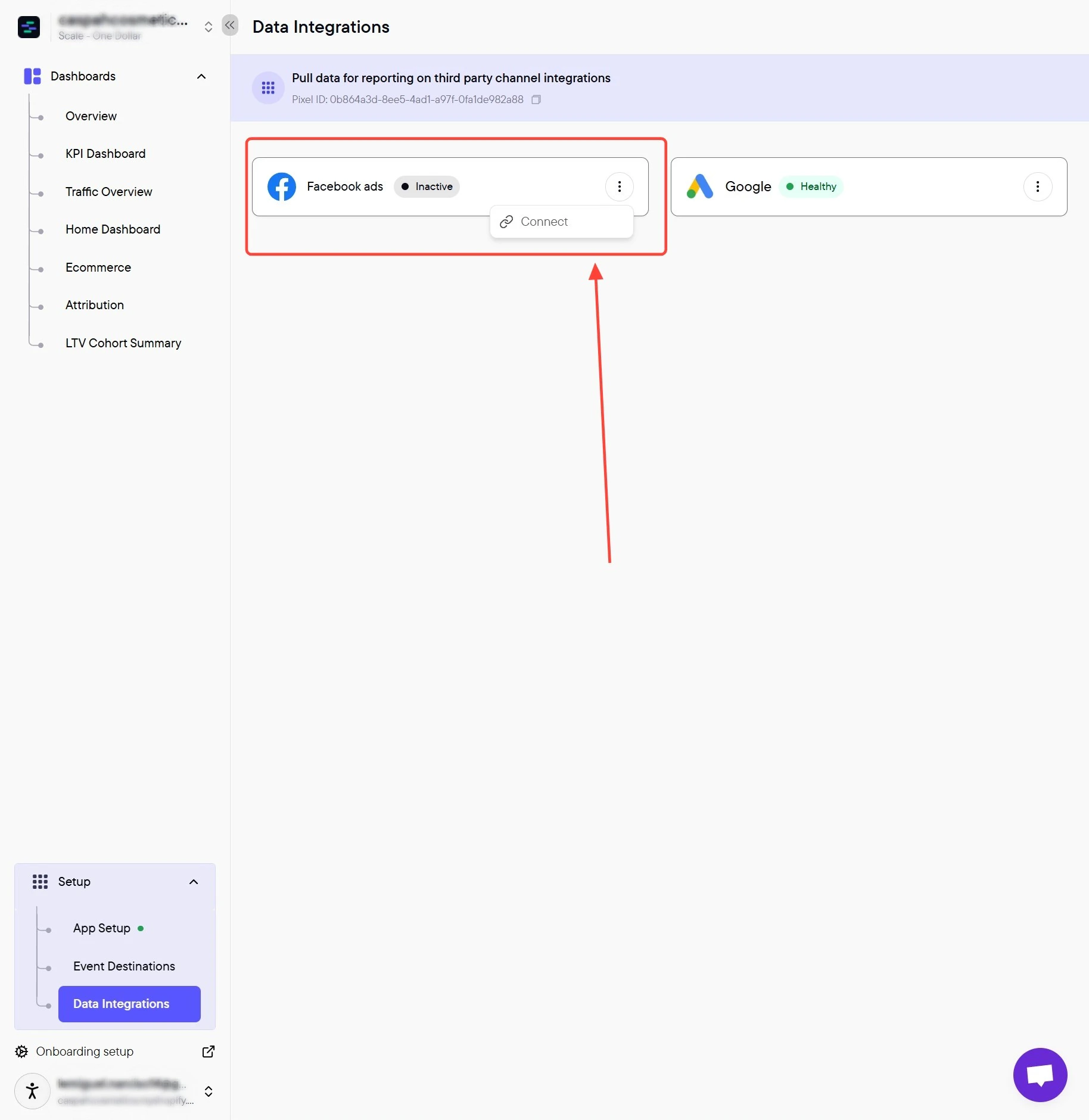
* On the **Facebook ads** card, open the **kebab menu** (3 dots) → click **Connect**.
* Authorize with Facebook and select the **ad account** you want to connect.
* Click **Save** and verify the integration shows **Healthy**.
**Purpose of this setup**
Connecting your Facebook ads account is required to access performance data at the account, campaign, ad set, and ad levels, which powers your dashboards and attribution reporting.
## Prerequisites
Before you start, you need:
* An active Upstack Data account ([sign up](https://app.upstackdata.com))
* Admin or advertiser access to the **Facebook ad account** you want to connect
* A Facebook user account that can sign in via OAuth on this browser
## Configuration steps
Sign in to Upstack Data at [app.upstackdata.com](https://app.upstackdata.com), then navigate to **Data Integrations** in the left-hand menu (or open it directly at [app.upstackdata.com/pixel/integrations](https://app.upstackdata.com/pixel/integrations)).
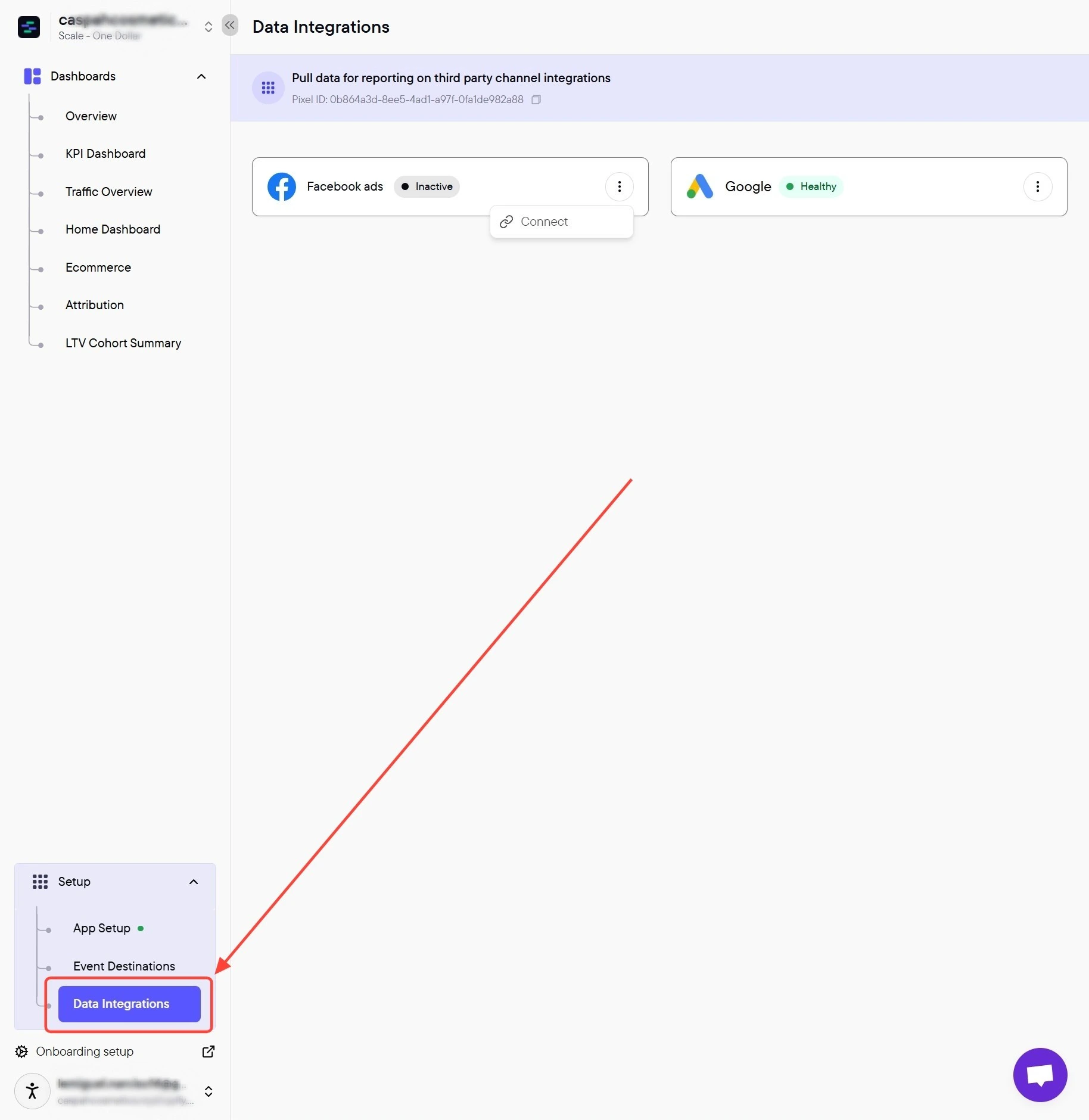 On the **Data Integrations** page, find the **Facebook ads** card and click the **kebab menu** (3 dots) in the top-right of the card, then click **Connect**.
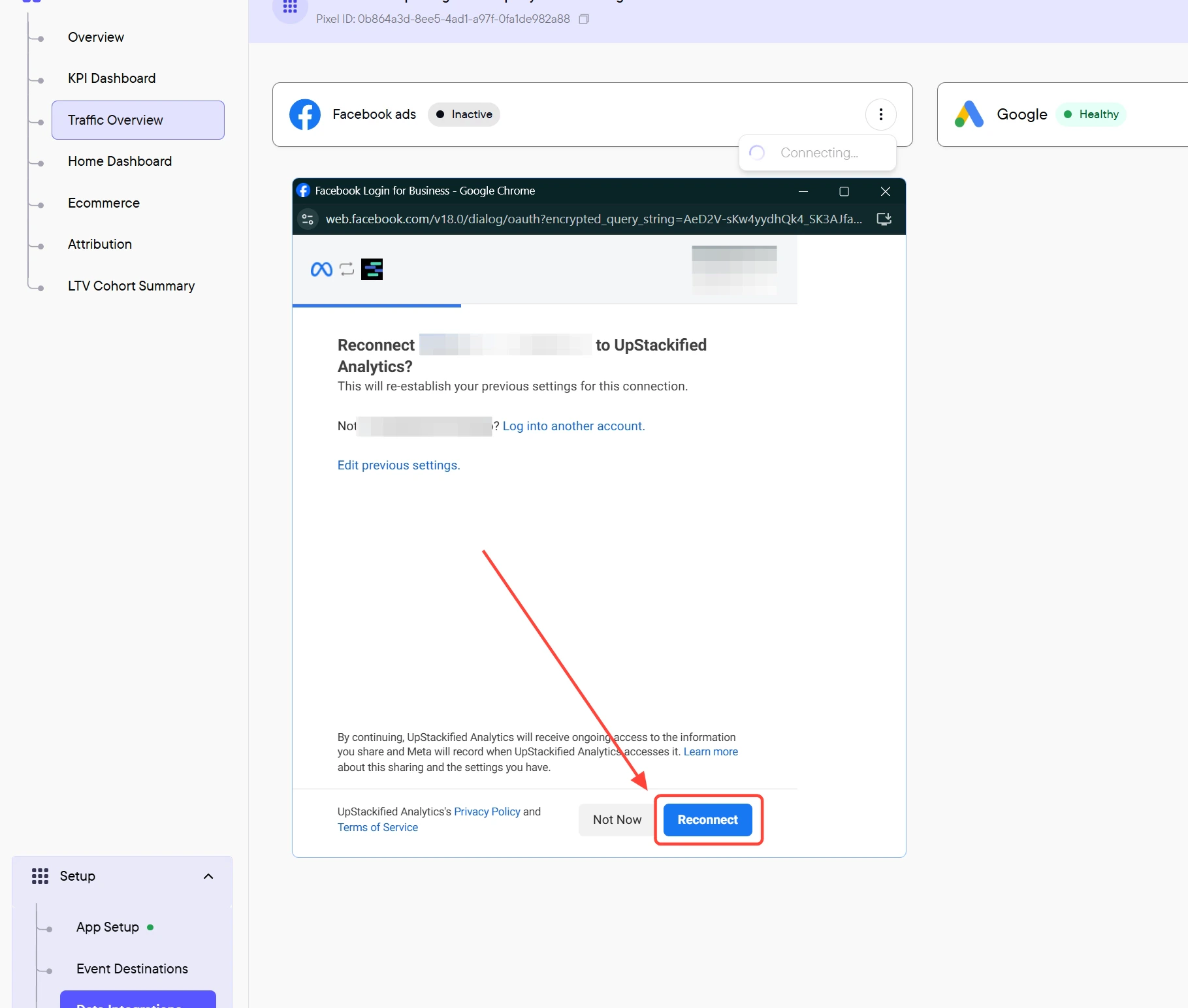
 If the Facebook account shown is correct, click **Connect** or **Reconnect**.
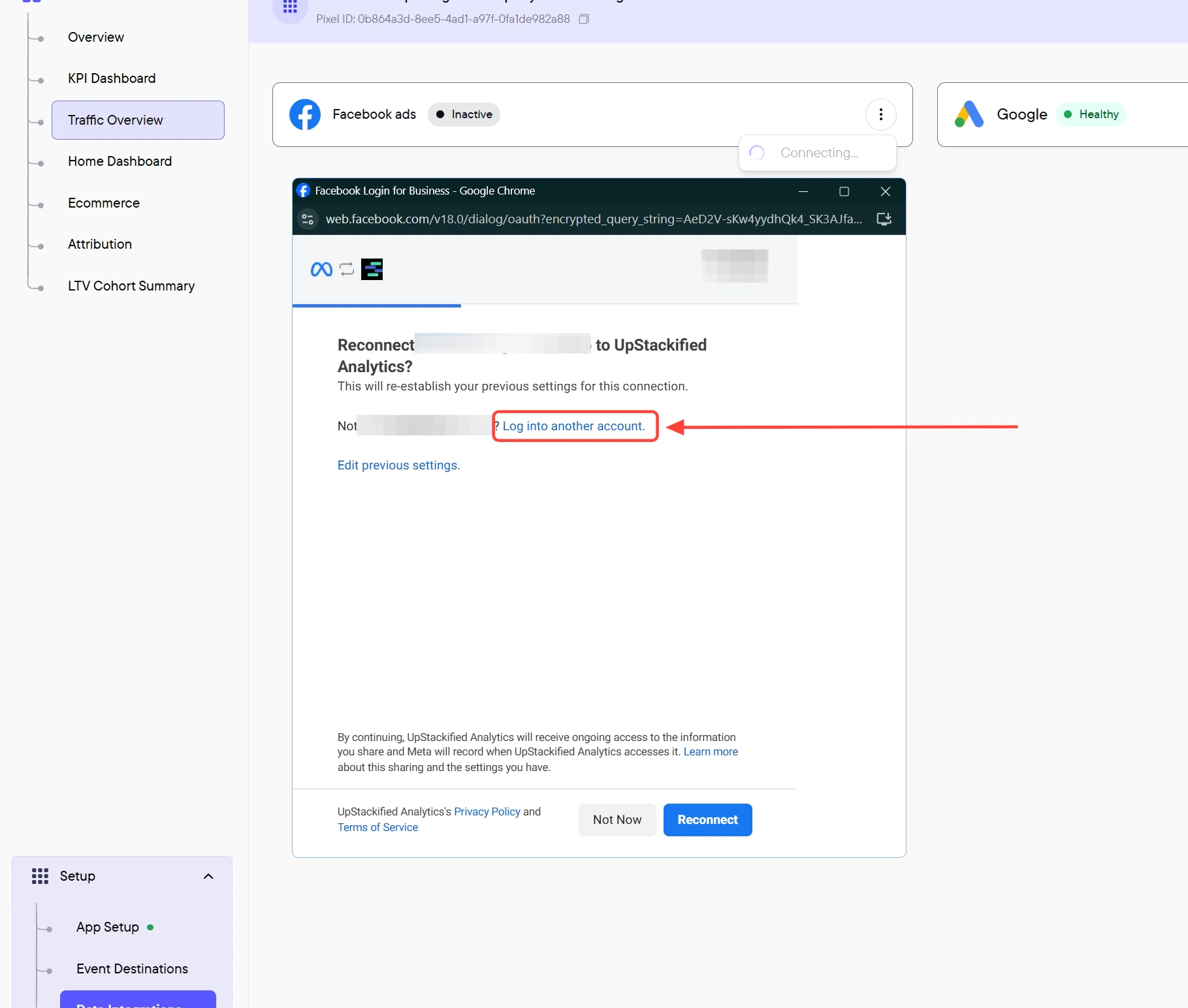
 If the Facebook account shown is **not** the one that has access to your ad account, click **Log into another account**.
 A popup displays every ad account linked to your Facebook user. Select the **Facebook ad account** you want Upstack Data to read performance data from.
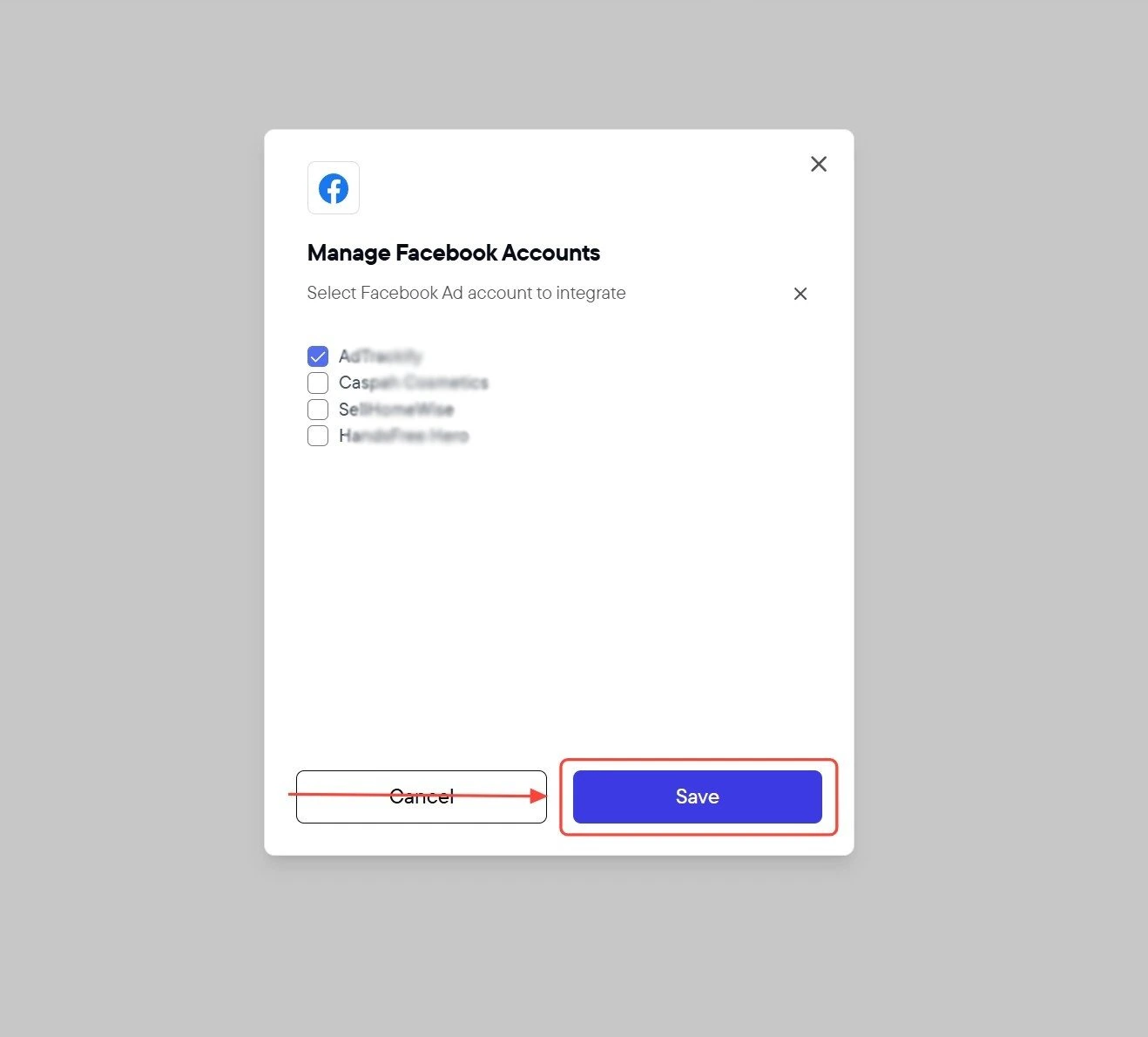
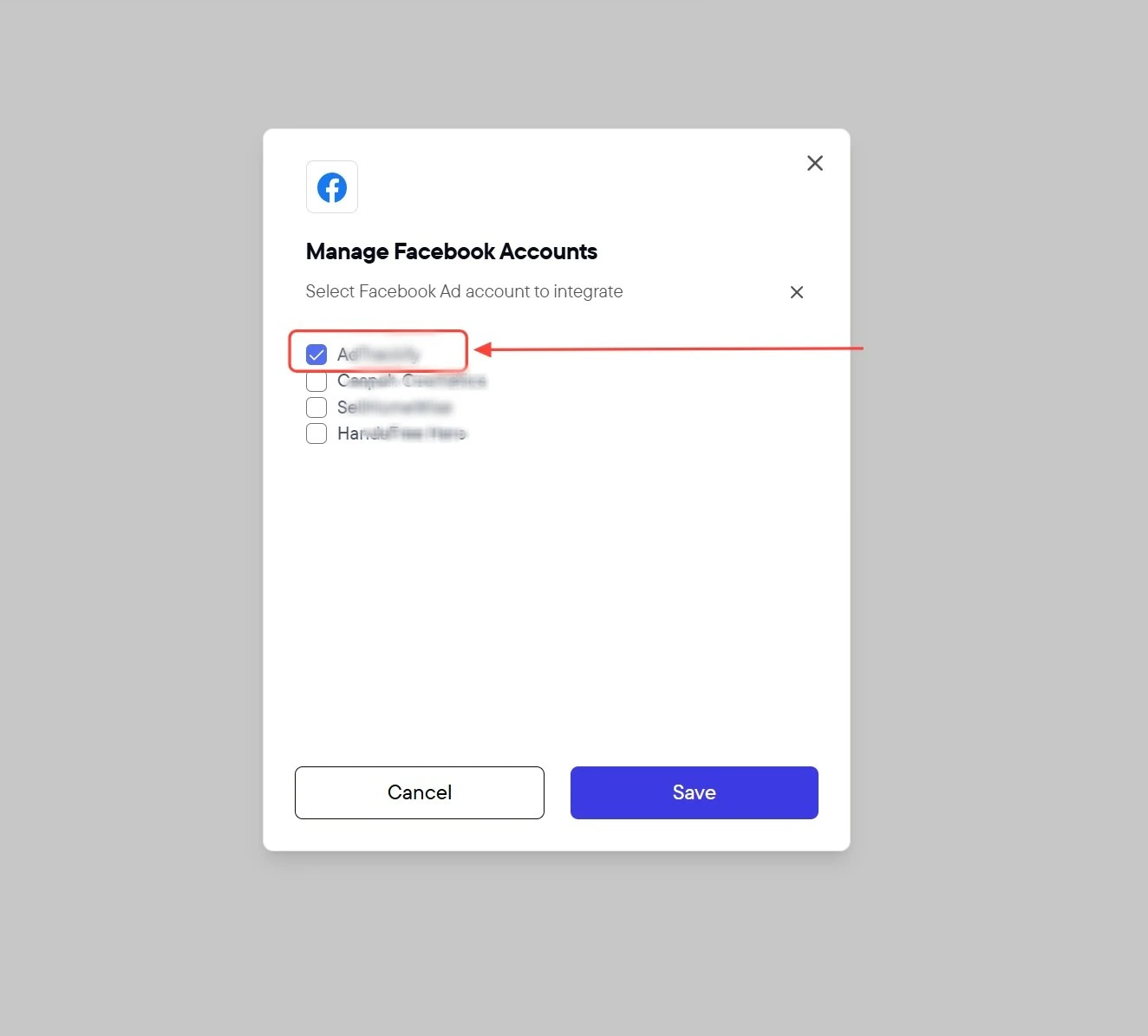 Click the **Save** button.
 In the Upstack dashboard, the **Facebook ads** integration card should display **Healthy** with a green status indicator within 5 minutes.
If the status shows **Unhealthy** or **Reconnect required**:
* Confirm the Facebook user that authorized the connection still has access to the ad account.
* Re-run the **Connect** flow and re-grant all requested permissions when prompted.
In the Upstack dashboard, the **Facebook ads** integration card should display **Healthy** with a green status indicator within 5 minutes.
If the status shows **Unhealthy** or **Reconnect required**:
* Confirm the Facebook user that authorized the connection still has access to the ad account.
* Re-run the **Connect** flow and re-grant all requested permissions when prompted.